How to Properly Open a CSV File in Microsoft Excel
🎯 The problem
Has this ever happened to you? Someone sends you a file, you open it in Excel, and you see something like this:
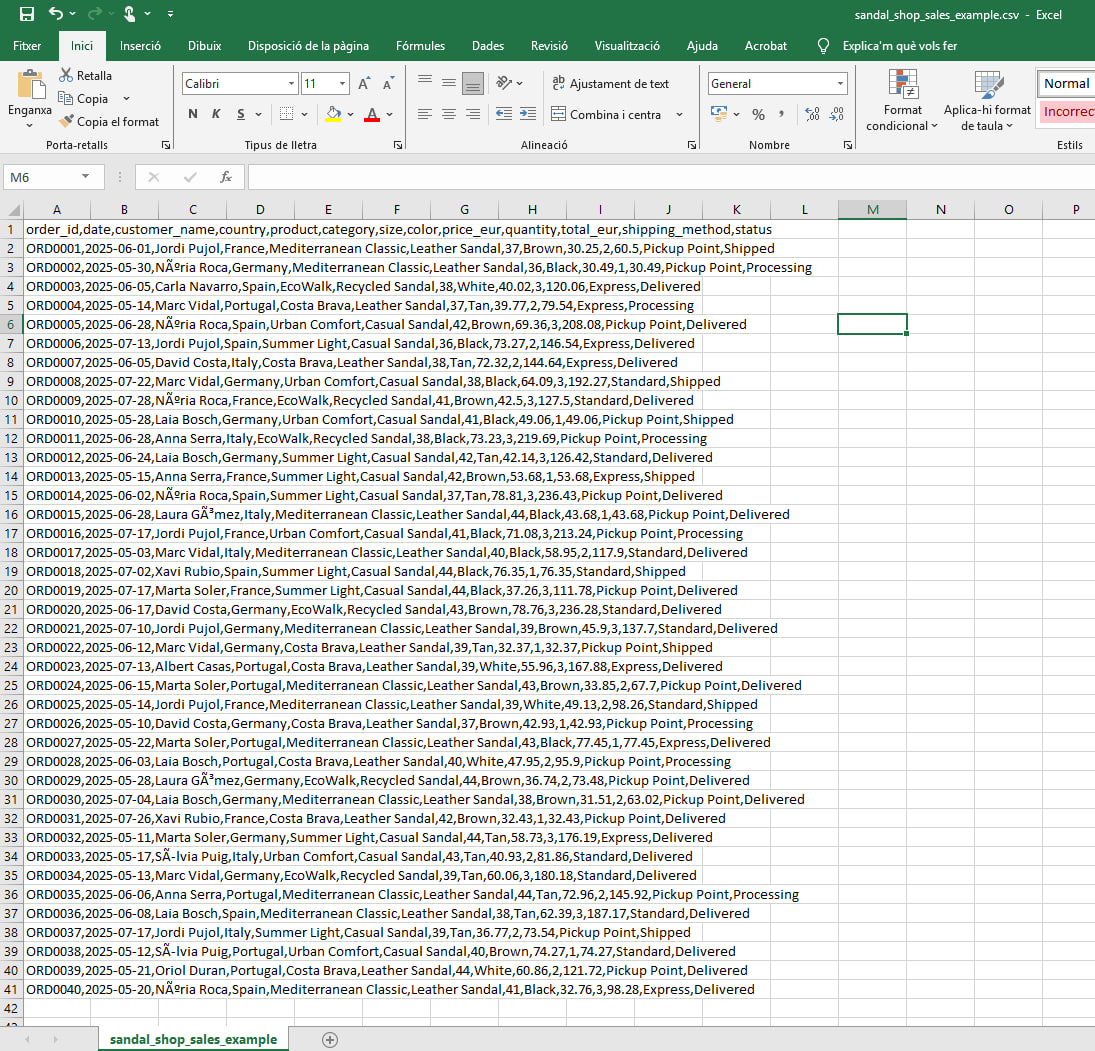
👉 Everything appears in a single column, with no structure or formatting.
✅ The solution (in 5 steps)
The file is actually fine — it’s a .csv.
You just need to tell Excel how to separate the data.
Follow these steps:
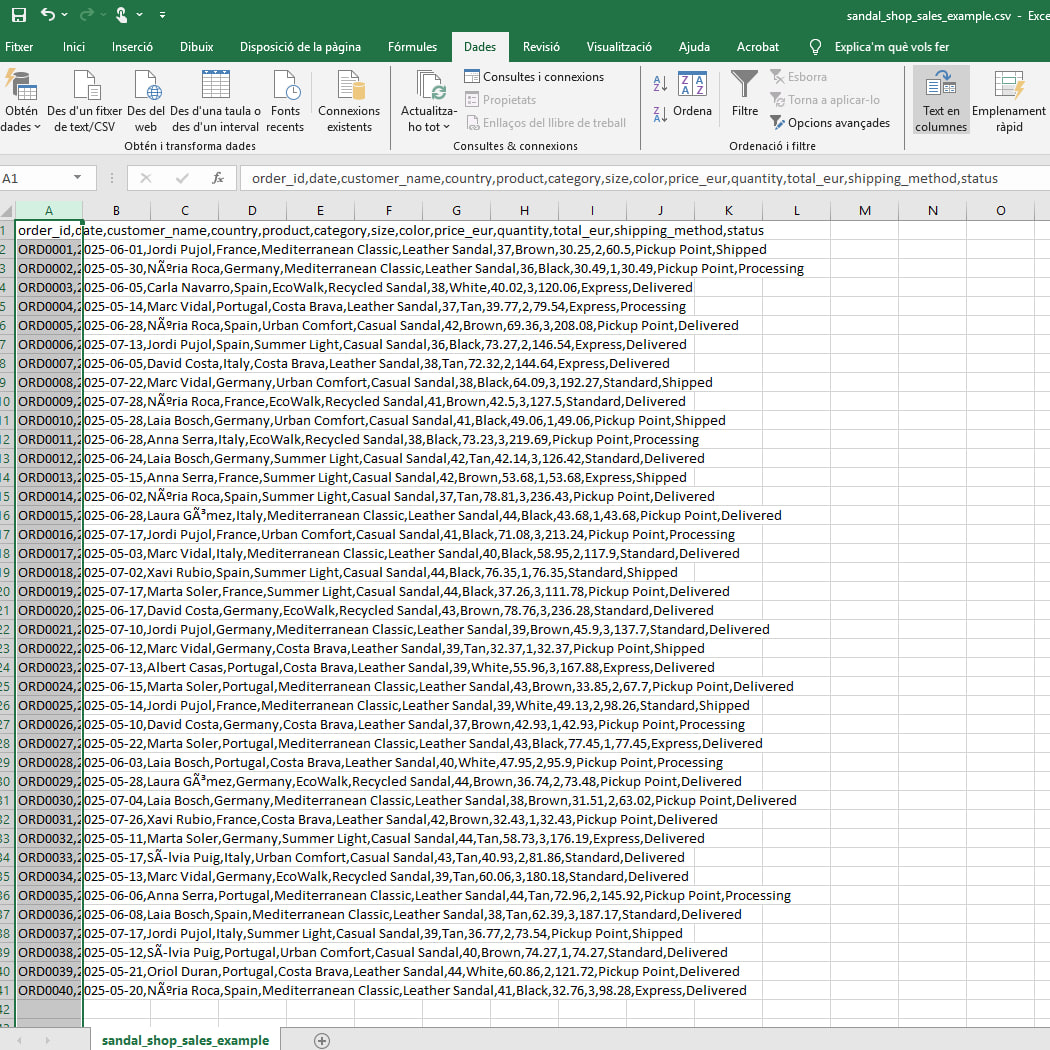
1. Select column A
Select the entire column A, go to the Data tab, and click Text to Columns.
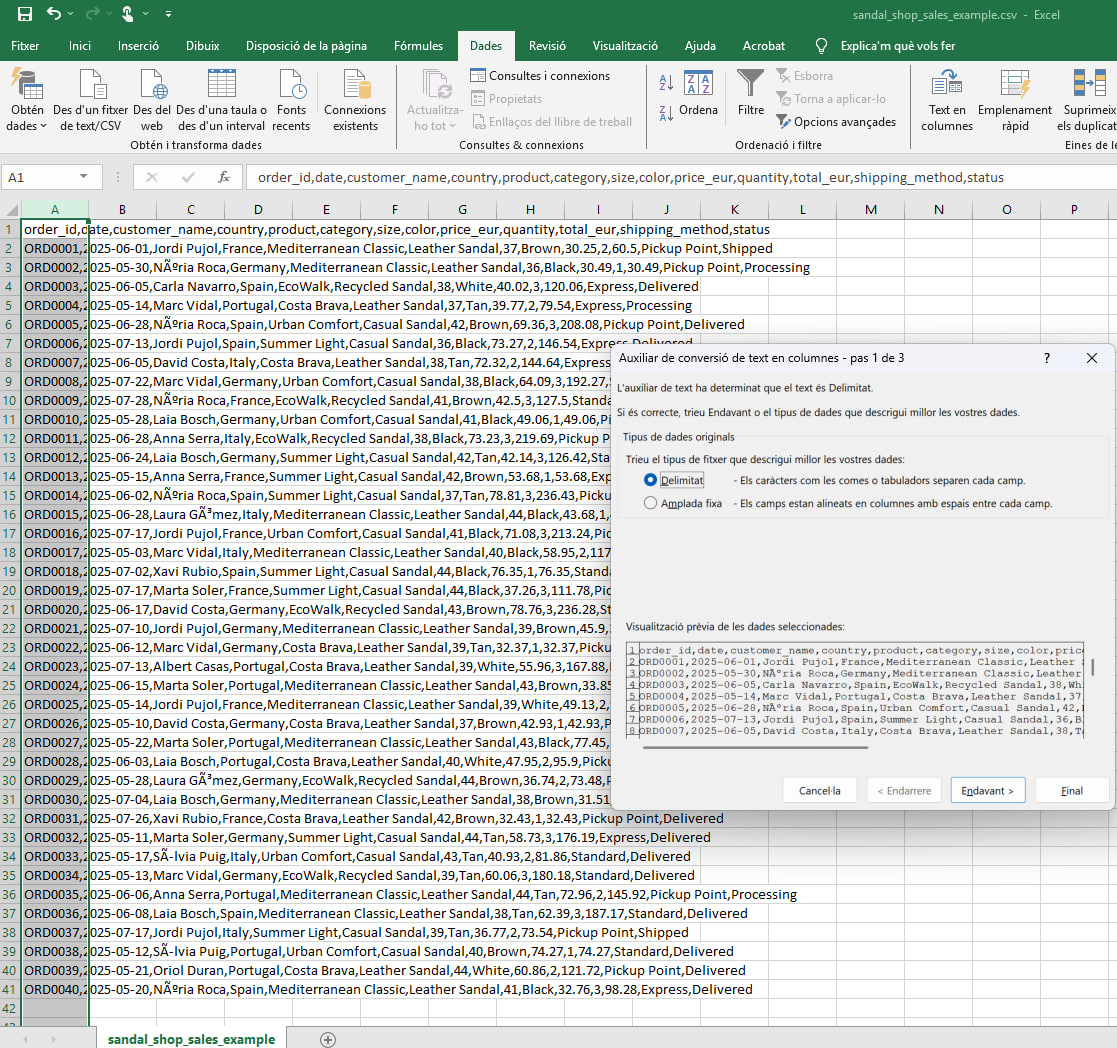
2. Choose “Delimited”
Select Delimited and click Next.
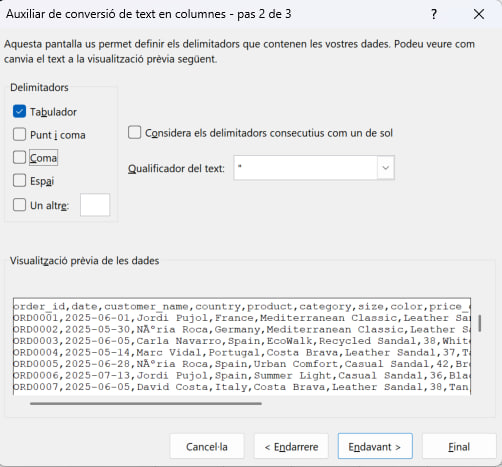
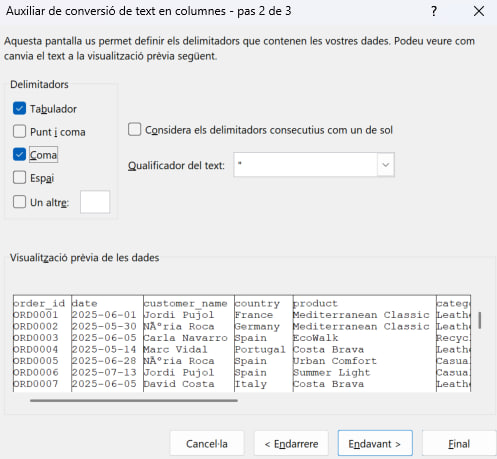
3. Choose the correct delimiter
This is where the magic happens.
- Most common → comma (,)
- In some systems → semicolon (;)
📌 Look at the preview below:
when you select the correct delimiter, the data will appear properly split into columns.
4. Check the preview
If the columns look correct:
👉 Click Next
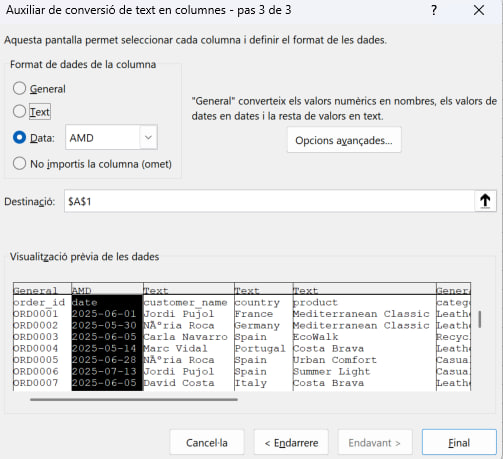
5. (Optional) Set the format for each column
This step is optional, but highly recommended.
You can define:
- 📅 Dates → for example, YMD (Year-Month-Day)
- 🔤 Text → to avoid issues with codes or identifiers
- 💶 Numbers → with proper currency formatting
👉 Doing this now can save you time later.
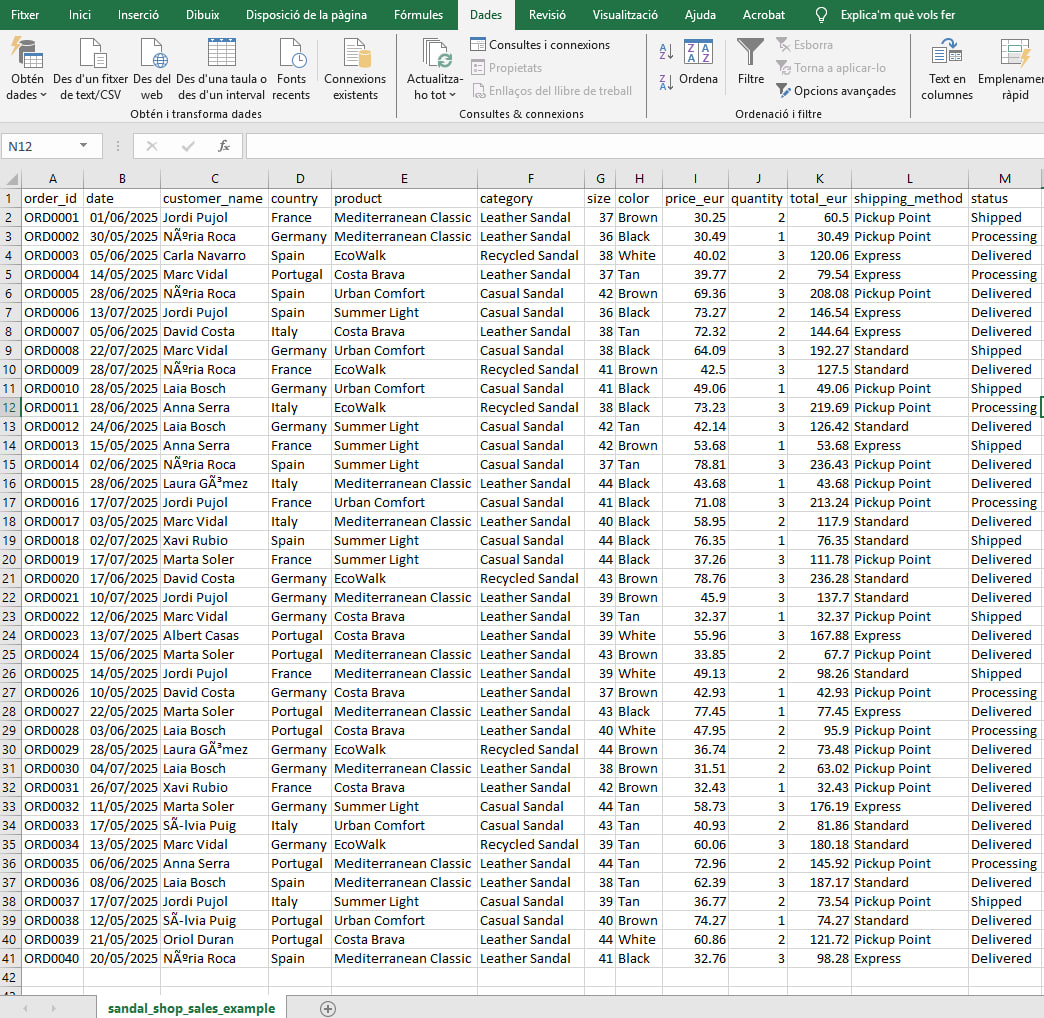
🎉 Final result
Once you click Finish, your CSV will be properly structured:
🧠 Quick summary
- A CSV is not broken → it’s just misinterpreted
- The issue is the delimiter
- Excel needs to be told how to split the data
🚀 Pro tip
If you work with CSV files often:
👉 Always import them via Data → From Text/CSV
(instead of double-clicking)
This way, you avoid this problem from the start.